
Give the AI screen context with screenshot capture
On this page
Turn on Capture screenshot in a context’s Advanced settings. When you dictate with that context, Contextli sends what is on your screen along with your words, so the AI can, for example, reply to the email you are looking at.
Turn on screenshot capture
- Click Contexts in the sidebar.
- Click the context you want to change, or click Add New Context to make a new one.
- Open Advanced settings.
- Switch on Capture screenshot (“Send what is on screen along with your words”).
- Click Save changes (or Save context for a new context).
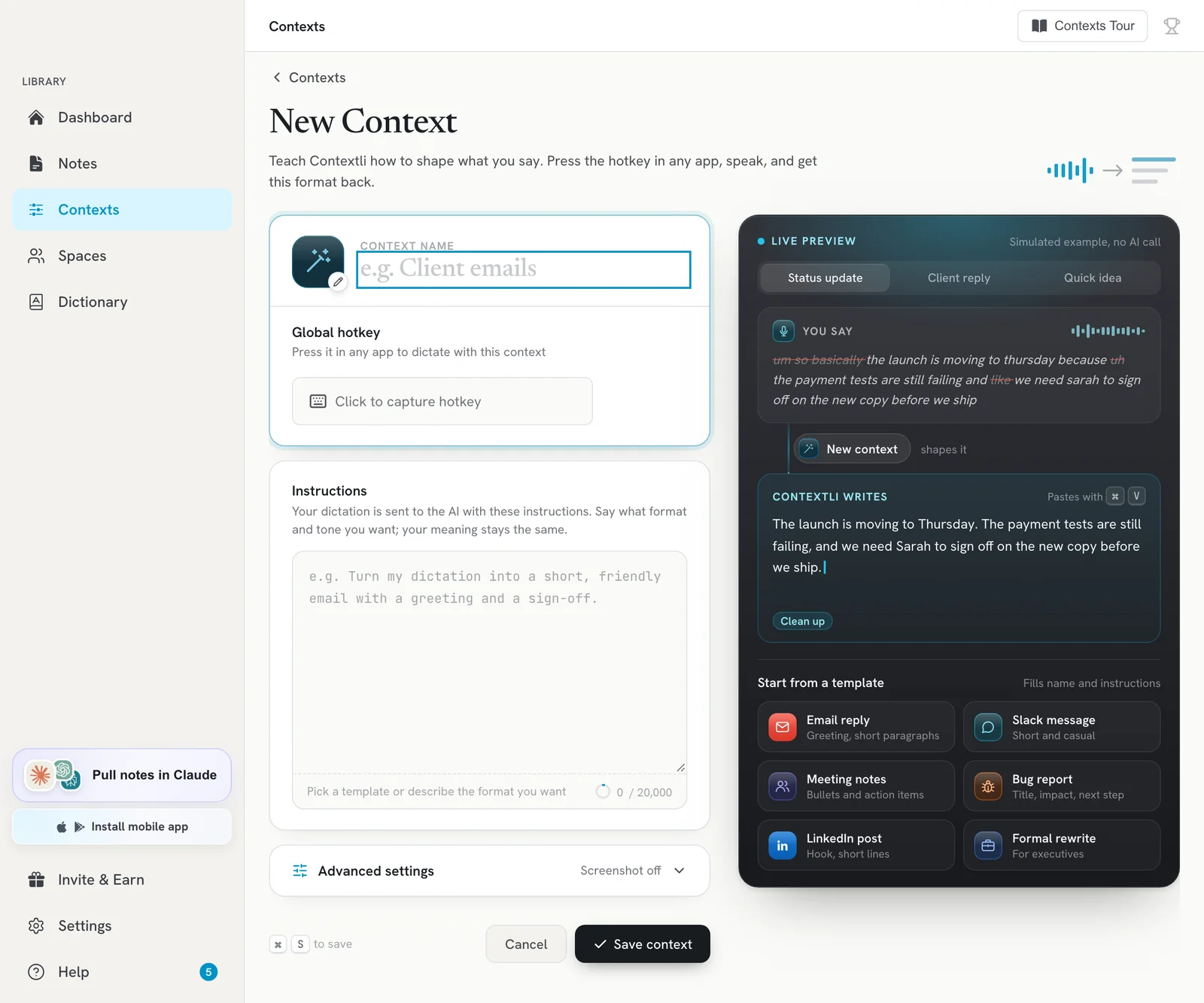
The built-in Email context has screenshot capture on by default.
Allow Screen Recording on Mac
The first time a context captures your screen, macOS asks for Screen Recording permission.
- When macOS asks, open System Settings > Privacy & Security > Screen Recording.
- Turn on Contextli.
- Quit and reopen Contextli if macOS asks you to.
When it helps
- Replying to an email or chat: say “tell her Thursday works” and the AI uses the thread on screen.
- Commenting on a document or ticket you are reading.
- Any time your words refer to “this” or “that” on screen.
Write your instructions so they mention it, for example: “Use the screenshot to understand what I am replying to.”
Good to know
- Screenshot capture is set per context. Turn it off for contexts where the screen does not matter.
- It adds a second or two to processing.
- Click What the AI receives in the editor to see that the screenshot is sent with your transcription.
- Only turn it on where you are comfortable sharing what is on screen. See What happens to my audio and text?
Related articles
Did this answer your question?
Thanks for letting us know.Thanks, we will improve this article. Want a hand right now?
Still need help?
Chat with us and get an answer in a few minutes.