
Pick a context automatically based on the app you are in
On this page
Turn on Auto-activate context in a supported context’s Advanced settings. After that, when you record with your main hotkey while a matching app is in focus (for example Gmail or Slack), Contextli uses that context automatically.
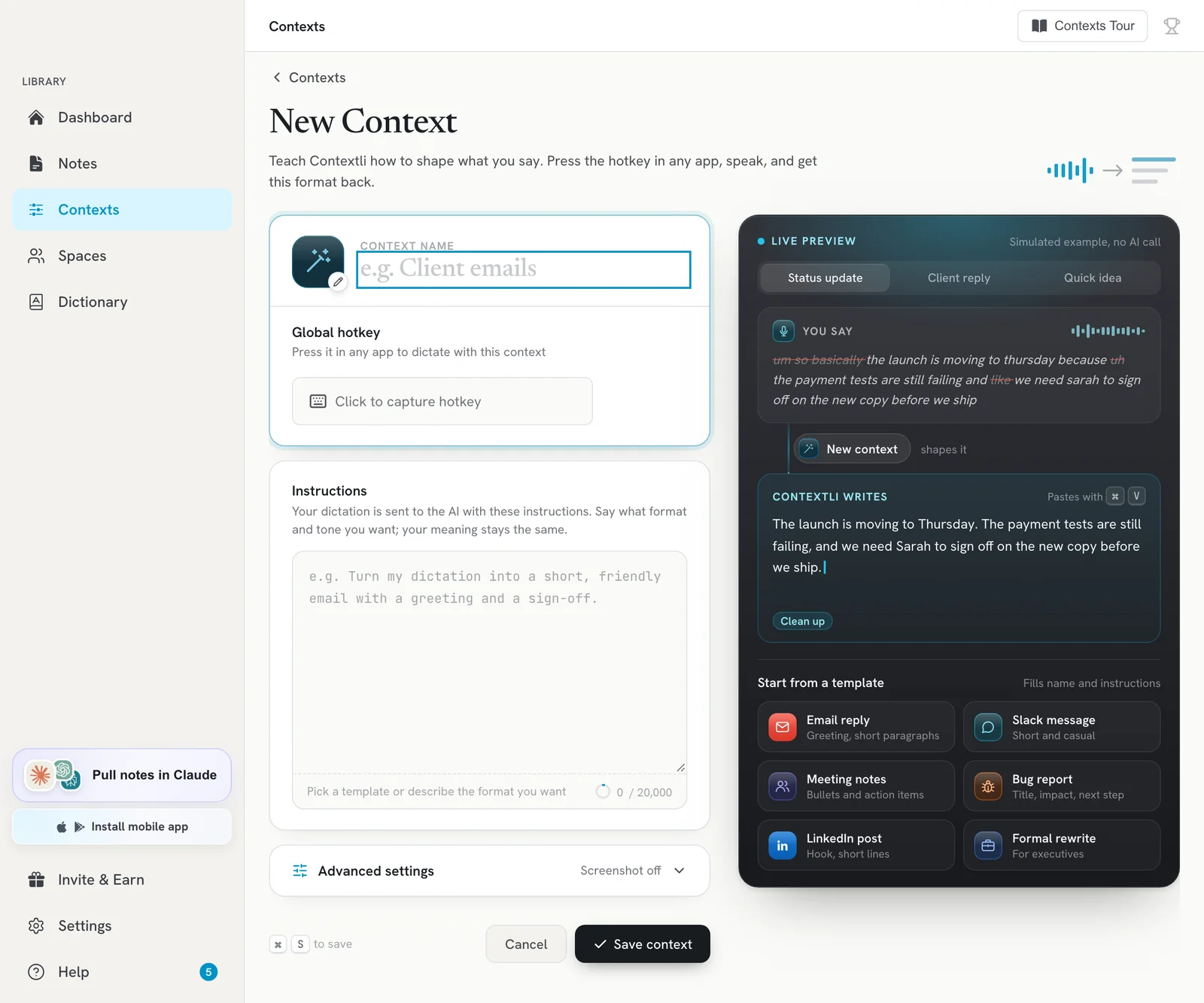
Turn on auto-activate
- Click Contexts in the sidebar.
- Click the context you want, for example Email. If it is off, clicking it turns it on and opens the editor.
- Open Advanced settings.
- Switch on Auto-activate context (“Pick this context when a related app is in focus”).
- Click Save changes.
Use it
- Click into the app you want to write in, for example a Gmail reply.
- Press your main recording hotkey (Option+Space on Mac, Ctrl+Space on Windows and Linux by default).
- Speak. Contextli detects the app and formats your words with the matching context.
Auto-activate only works with the main hotkey. A context’s own hotkey always uses that context.
Which contexts and apps are supported
Auto-activate is available on these built-in contexts. Custom contexts do not have the option.
| Context | Detected apps |
|---|---|
| Mail, Outlook and webmail such as Gmail | |
| Slack | Slack and Discord |
| Prompt Engineer | VS Code, Cursor, and AI chats such as ChatGPT and Claude |
| Executive: Meeting Notes | Zoom and Teams |
Browser tabs are detected on Chrome, Safari, Arc, Edge and Brave.
Troubleshooting
- It used the plain transcript instead: check that the context itself is turned on and that Auto-activate context is switched on in its Advanced settings.
- The wrong app was detected: click inside the window you want to write in before pressing the hotkey, so it is the app in focus.
- I don’t see the toggle: the context you opened does not support auto-activate. Use its own hotkey instead.
Related articles
Did this answer your question?
Thanks for letting us know.Thanks, we will improve this article. Want a hand right now?
Still need help?
Chat with us and get an answer in a few minutes.