
Create a custom context
On the Contexts page click Add New Context, give it a name, a global hotkey and instructions, then click Save context.
On this page
Open Contexts, click Add New Context, give it a name, a Global hotkey and Instructions, then click Save context. From then on, pressing that hotkey in any app turns your speech into the format you described.
Create the context
- Click Contexts in the sidebar.
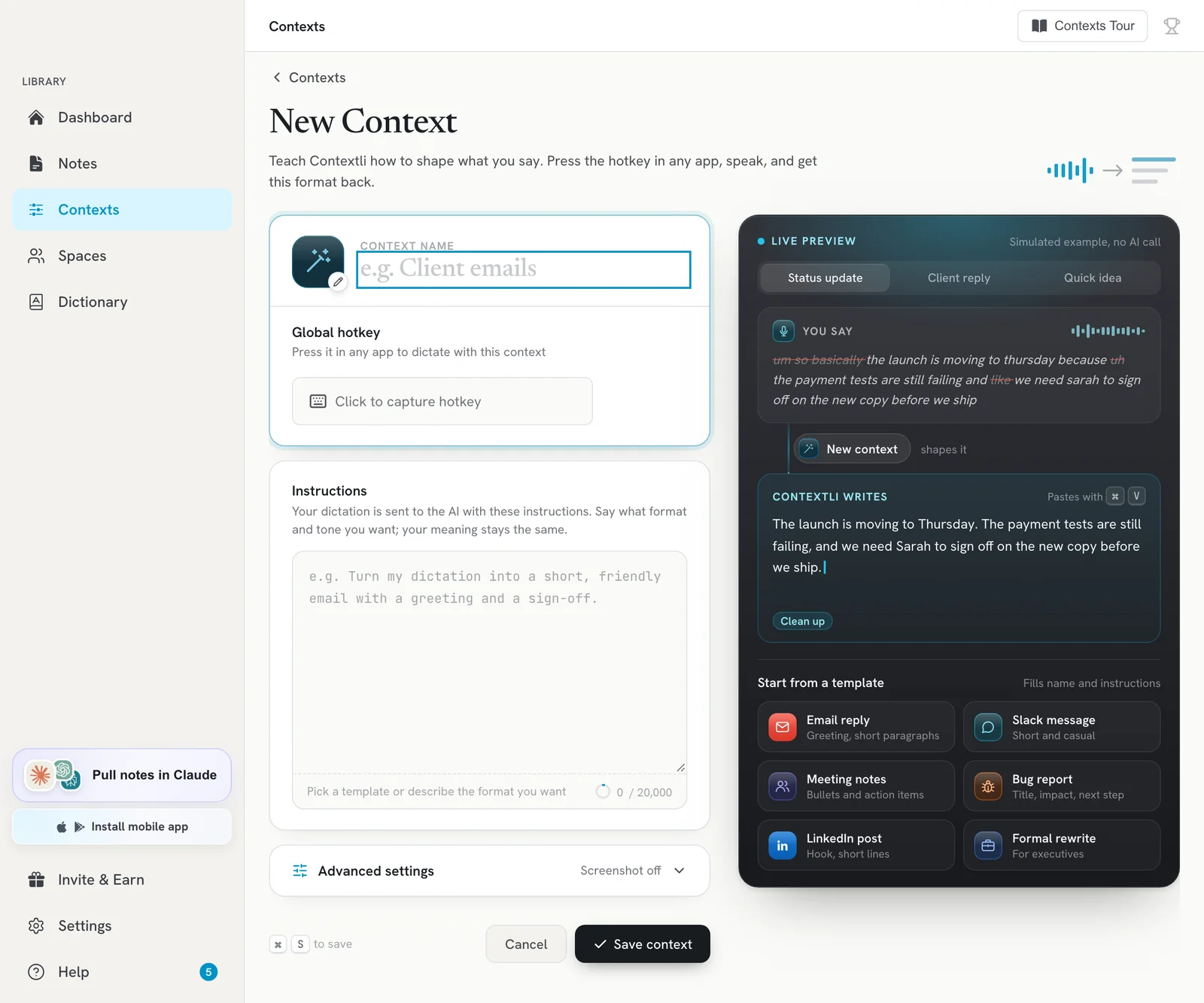
- Click Add New Context. The New Context editor opens.
- Pick an icon and type a Context name (for example “Client emails”).
- Click the Global hotkey field and press the key combination you want. If it is already taken, you see: This hotkey is already used by “name”. Pick another.
- Under Instructions, describe the format and tone you want. To start quickly, click a template under Start from: Email reply, Slack message, Meeting notes, Bug report, LinkedIn post or Formal rewrite, then edit it.
- Check the live preview on the right to see how your words will come out.
- Optional: open Advanced settings to turn on Capture screenshot (send what is on screen along with your words).
- Click Save context.
Your new context appears on the Contexts page and you can add it to the contexts bar.
Tips for good instructions
- Say what the output should look like: “a short email with a greeting and a sign-off”.
- Say the tone: professional, casual, friendly.
- Add rules: “Keep my meaning and facts exactly. Remove filler words.”
- Short instructions are faster. Very long instructions add a few seconds per dictation.
- Click What the AI receives under the instructions to see exactly what is sent.
Edit or delete a context
- Edit: click the context card (or its edit button), change it and click Save changes.
- Delete: open the card’s menu (three dots) and click Delete Context.
Troubleshooting
- The hotkey does nothing: another app may use the same keys. Choose a different combination with a modifier like Cmd, Ctrl, Option or Alt.
- The output ignores my format: make the instructions more specific and test again.
Related articles
Did this answer your question?
Thanks for letting us know.Thanks, we will improve this article. Want a hand right now?
Still need help?
Chat with us and get an answer in a few minutes.