
Turn Polished Transcription on or off
Use the toggle on the Default Transcription card on the Contexts page. On, AI fixes grammar and punctuation; off, you get the raw transcript.
On this page
Polished Transcription is a toggle on the Default Transcription card on the Contexts page. When it is on, AI corrects grammar and adds punctuation to what you say with your main hotkey; when it is off (the default), you get the raw transcription.
Turn it on or off
- Open Contextli and click Contexts in the sidebar.
- Find the Default Transcription card under Selected Contexts.
- Click the toggle on the card. When it is on, the card is renamed Polished Transcription.
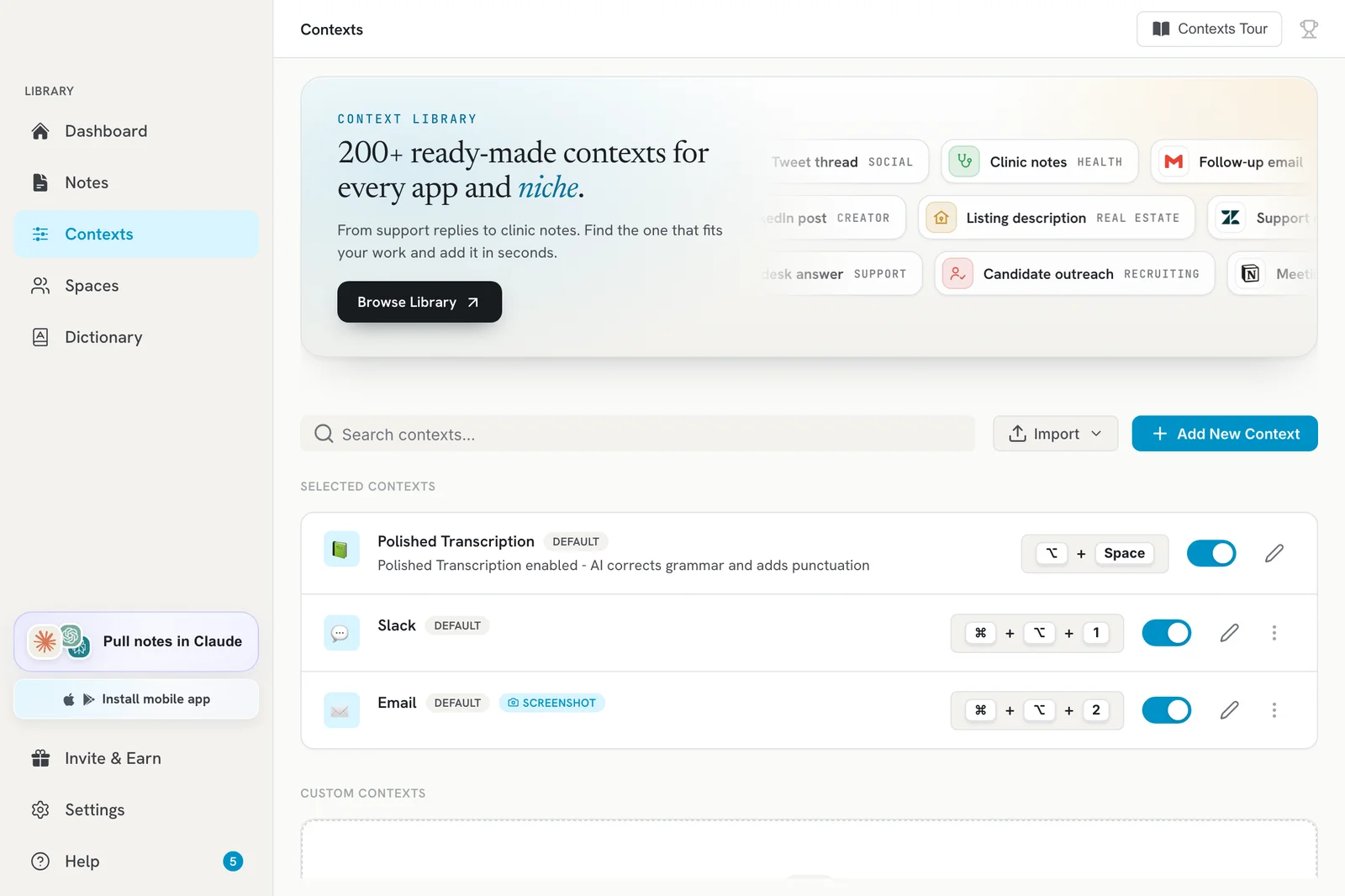
You can also flip the same toggle on the Dashboard under Your Contexts.
The change applies to your main recording hotkey (Option+Space on Mac, Ctrl+Space on Windows and Linux by default). Other contexts, like Email or Slack, always rewrite your words with their own instructions.
Which should I use?
| Polished Transcription off | Polished Transcription on | |
|---|---|---|
| Output | Exactly what you said | Cleaned up grammar and punctuation |
| Speed | Fastest | A second or two slower |
| Good for | Quick notes, chat, code comments | Messages and documents you send as-is |
If dictation feels slow, turning Polished Transcription off returns raw text faster.
Edit the polish instructions
When Polished Transcription is on, its card can be edited. Click the edit button on the card to adjust its instructions, then save.
See the raw version of a note
Every polished note keeps the original words. Open the note on the Notes page and switch to the Transcript tab to see the Raw transcription.
Troubleshooting
- “AI polish failed”: your words are saved in Notes. Open Notes and retry.
- Nothing changes: make sure you are recording with the main hotkey, not a context hotkey.
Related articles
Did this answer your question?
Thanks for letting us know.Thanks, we will improve this article. Want a hand right now?
Still need help?
Chat with us and get an answer in a few minutes.