
What are contexts?
A context is a saved set of AI instructions with its own hotkey: press it in any app, speak, and Contextli pastes your words in that format.
On this page
A context is a saved set of AI instructions with its own global hotkey, icon and colour. Press a context’s hotkey in any app, speak naturally, and Contextli pastes your words back in that format, for example as an email, a Slack message or a bug report.
How a context works
- You press the context’s hotkey and speak.
- Contextli transcribes what you said.
- Your words are sent to the AI together with the context’s Instructions.
- The result is pasted at your cursor (and copied to your clipboard).
Your meaning stays the same. The context only changes format and tone.
The Default Transcription context
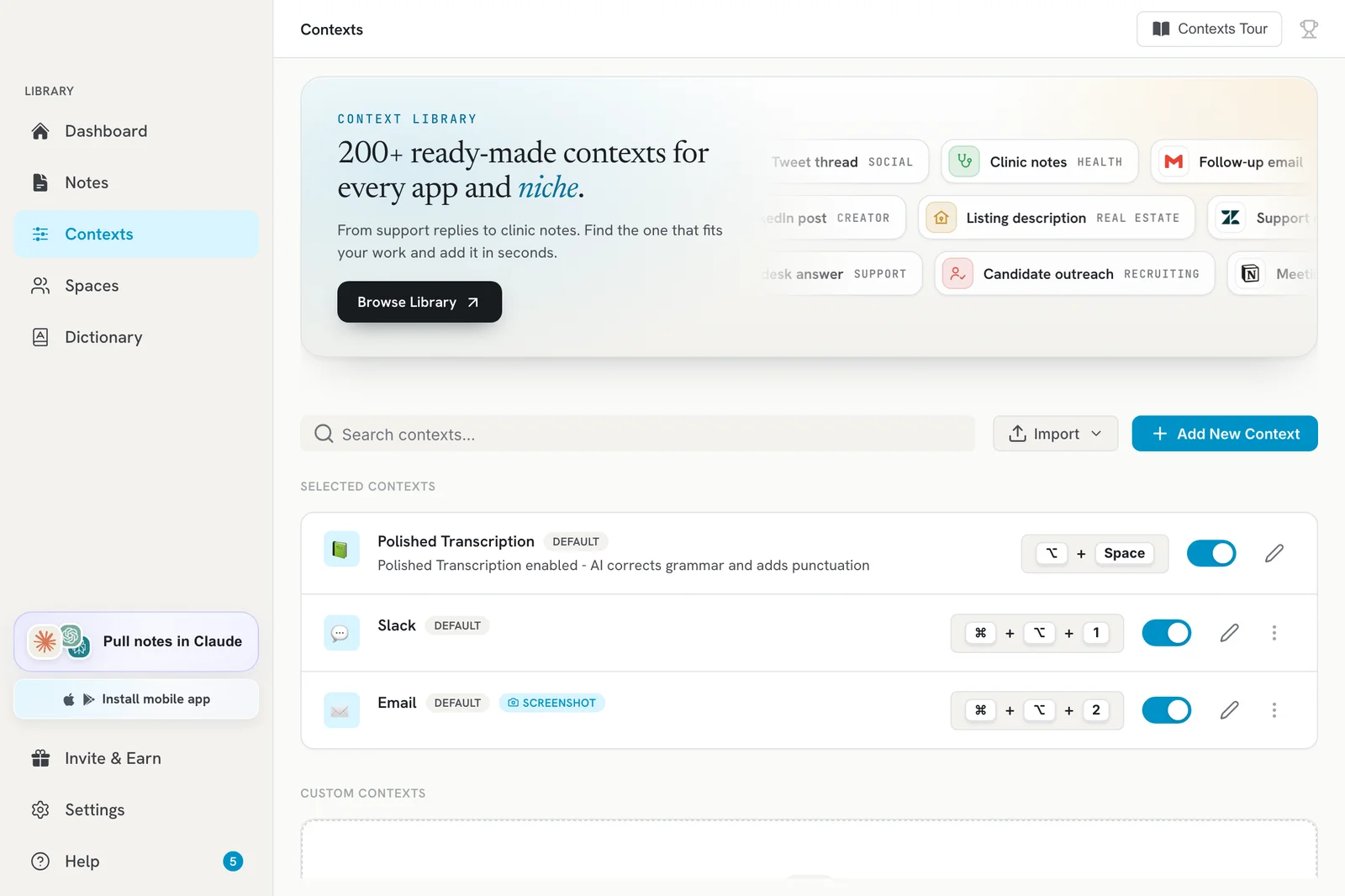
Default Transcription is always on and uses your main recording hotkey (Option+Space on Mac, Ctrl+Space on Windows and Linux by default). It gives you a plain transcript. Turn on Polished Transcription on its card if you want the AI to fix grammar and punctuation as well.
Built-in and custom contexts
- Built-in contexts such as Slack, Email, LinkedIn, Support: Ticket Response and Executive: Meeting Notes are ready to use. They are off until you turn them on.
- Custom contexts are ones you write yourself with Add New Context.
- Shared with Me shows contexts other people shared with you through Spaces.
You manage all of them on the Contexts page in the sidebar.
Ways to use a context
- Press its own hotkey.
- Click it on the contexts bar on your screen.
- Let Contextli pick it for you based on the app you are in (auto-activate, available on some built-in contexts).
Looking for more?
The Context Library banner on the Contexts page links to 200+ ready-made contexts at contextli.com. Click Browse Library to see them.
Related articles
Did this answer your question?
Thanks for letting us know.Thanks, we will improve this article. Want a hand right now?
Still need help?
Chat with us and get an answer in a few minutes.