
Use the contexts bar and Quick Mic button
The contexts bar and Quick Mic let you start dictating with a click instead of a hotkey. Turn them on, off or restyle them in Settings > Widgets.
On this page
The contexts bar and the Quick Mic button let you start dictating with a click instead of a hotkey. You can turn them on, off or change how the bar looks in Settings > Widgets.
The contexts bar
The contexts bar sits on your screen so you can start dictating without opening the app. It holds 4 context slots.
- Click the Contextli mark on the bar (Open contexts) to expand it.
- Click a context to start dictating with it, or click the start button to dictate with the last context you used.
- Speak, then click Stop recording. To throw the recording away, click Cancel recording.
Show or hide the bar with Cmd+Option+M on Mac, Alt+Shift+M on Windows or Ctrl+Alt+M on Linux. You can also use the tray or menu bar icon: Widgets > Context Bar.
Change the bar’s style
- Open Settings and click the Widgets tab.
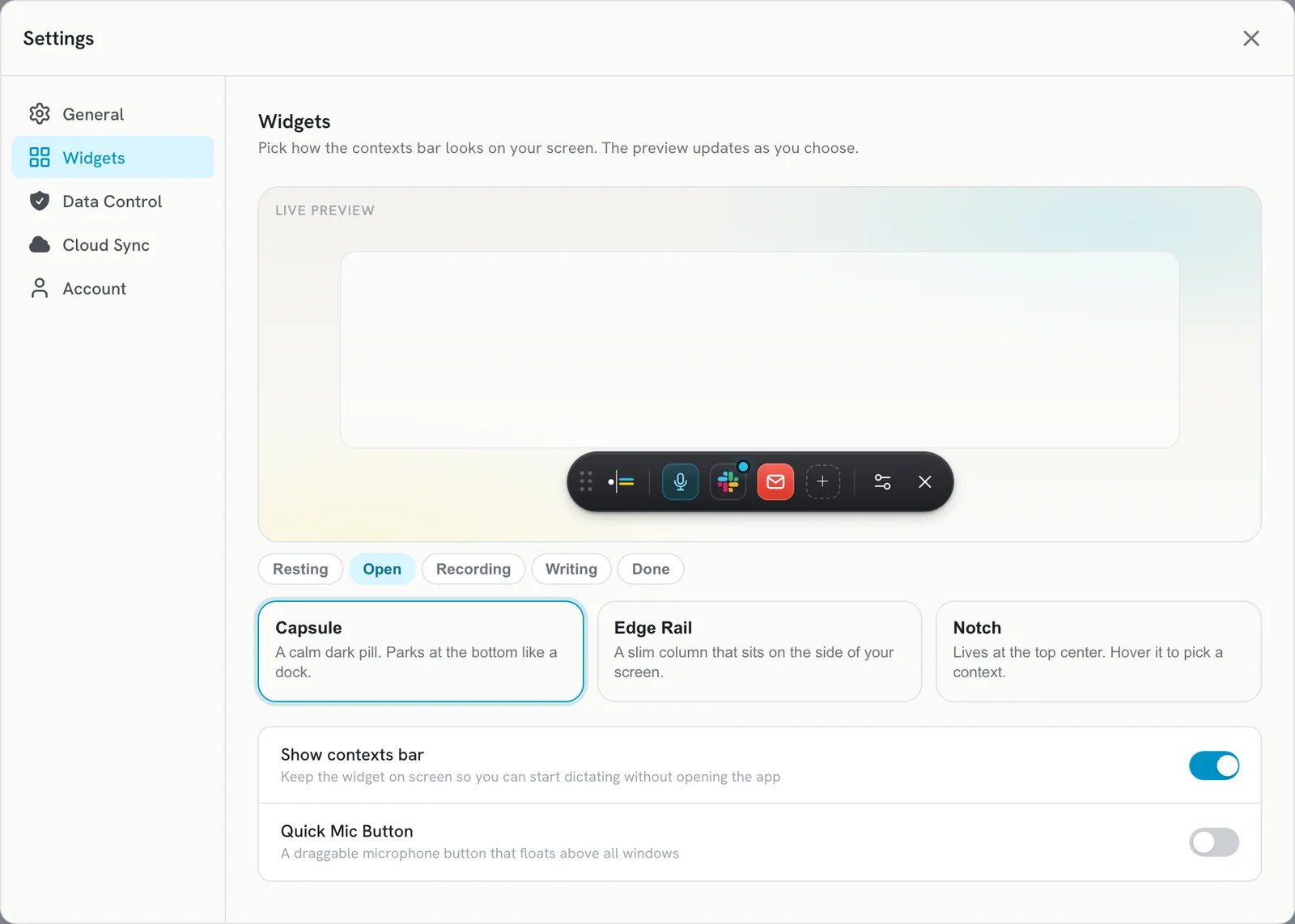
- Pick a style: Capsule (a dark pill at the bottom of the screen), Edge Rail (a slim column on the left or right edge) or Notch (top center). The live preview updates as you choose.
- To hide the bar for good, turn off Show contexts bar.
The Quick Mic button
Quick Mic is a small microphone button that floats above all your windows. It is off by default.
- In Settings > Widgets, turn on Quick Mic Button.
- Drag the button anywhere on screen.
- Click it to start recording. Click it again to stop, or hold it if you use Hold to Record.
Show or hide it with Cmd+Option+O on Mac, Alt+Shift+O on Windows or Ctrl+Alt+O on Linux.
Prefer only the keyboard?
Turn off both Show contexts bar and Quick Mic Button in Settings > Widgets. Your hotkeys keep working.
Related articles
Did this answer your question?
Thanks for letting us know.Thanks, we will improve this article. Want a hand right now?
Still need help?
Chat with us and get an answer in a few minutes.