
Choose Toggle or Hold to record
Toggle Recording starts on one press and stops on the next. Hold to Record records only while you hold the hotkey. Switch in Settings > General > Recording Mode.
Toggle Recording starts when you press the hotkey and stops when you press it again. Hold to Record records only while you hold the hotkey down and stops when you let go. Switch between them in Settings > General > Recording Mode.
Which one to pick
- Toggle Recording is best for longer dictation, like emails or notes. Your hands are free while you talk.
- Hold to Record is best for quick messages. It works like a walkie-talkie and you never forget to stop.
Switch modes
- Click Settings at the bottom of the sidebar.
- On the General tab, under Recording, find Recording Mode.
- Click Toggle Recording (“Press hotkey to start, press again to stop.”) or Hold to Record (“Hold hotkey while speaking, release when done.”).
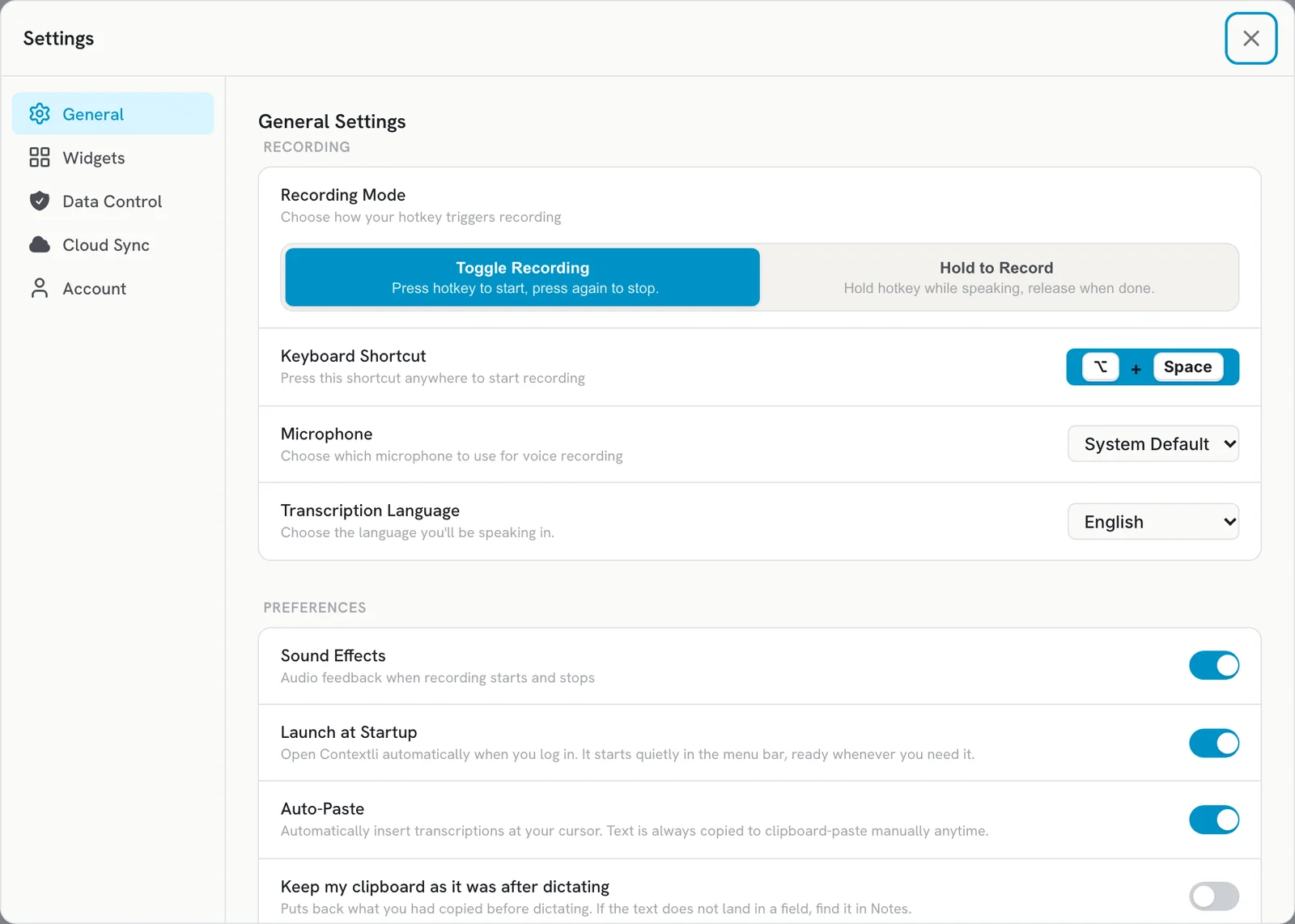
You can also choose a mode during setup on the Let’s Get You Set Up screen.
Hotkeys for each mode
Both modes use the same Keyboard Shortcut. The rules differ a little:
- Toggle Recording needs a modifier plus a key, for example Option+Space on Mac or Ctrl+Space on Windows and Linux.
- Hold to Record accepts any key or combination, even a single key like Right Option on Mac.
- On Windows, Ctrl + Win is a good Hold key because it never fires while you copy or paste.
If Contextli cannot use a hotkey in Hold mode, it shows a Hotkey Registration Warning and that hotkey falls back to Toggle mode. Pick a standard combination like Ctrl plus a key and try again.
Tips
- Wait for the start sound before you speak, so the first word is not lost.
- In Hold mode, keep holding until you finish your last word.
- To stop a recording without keeping it, click Cancel recording on the on-screen widget.
Related articles
Did this answer your question?
Thanks for letting us know.Thanks, we will improve this article. Want a hand right now?
Still need help?
Chat with us and get an answer in a few minutes.