
Change your recording hotkey
Open Settings > General, click the shortcut next to Keyboard Shortcut, then press the new key combination. Press Escape to cancel.
On this page
Open Settings > General, click the shortcut shown next to Keyboard Shortcut, then press the new key combination. Press Escape to cancel without changing it.
Change the main hotkey
- Open Contextli and click Settings at the bottom of the sidebar.
- Stay on the General tab and find the Recording section.
- Click the button next to Keyboard Shortcut. It changes to Press keys…
- Press the combination you want. It saves right away.
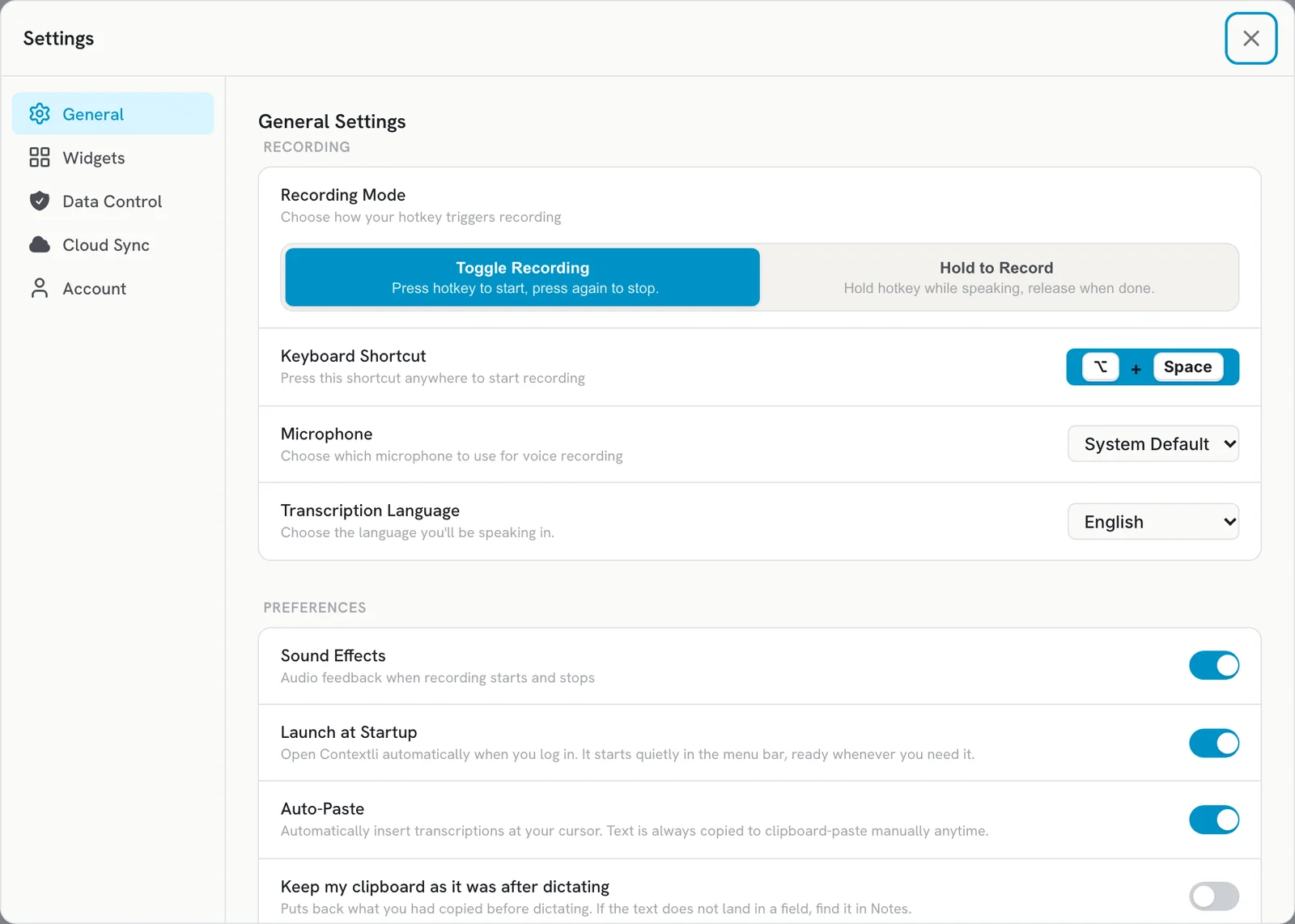
Toggle and Hold to Record share this one hotkey, so changing it changes both.
What keys you can use
- Toggle Recording: use a modifier (Ctrl, Alt or Option, Shift, Cmd) plus a letter, number or Space, for example Ctrl+Shift+D.
- Hold to Record: any key or combination works, including a single key like Right Option.
- On Windows, Ctrl + Win works well in Hold mode because it never fires while you copy or paste.
Pick a combination that no other app uses. If another app or the system already owns it, Contextli cannot register it and shows a Hotkey Registration Warning.
Defaults
| Mac | Windows | Linux | |
|---|---|---|---|
| Recording hotkey (Toggle and Hold) | Option+Space | Ctrl+Space | Ctrl+Space |
Switching between Toggle and Hold to Record keeps your current hotkey.
Hotkeys for contexts
Each context can have its own global hotkey. Go to Contexts, edit the context and set Global hotkey, or click Add hotkey on its card. If the keys are taken, you will see: This hotkey is already used by “name”. See Create a custom context.
Related articles
Did this answer your question?
Thanks for letting us know.Thanks, we will improve this article. Want a hand right now?
Still need help?
Chat with us and get an answer in a few minutes.