
Default keyboard shortcuts on Mac, Windows and Linux
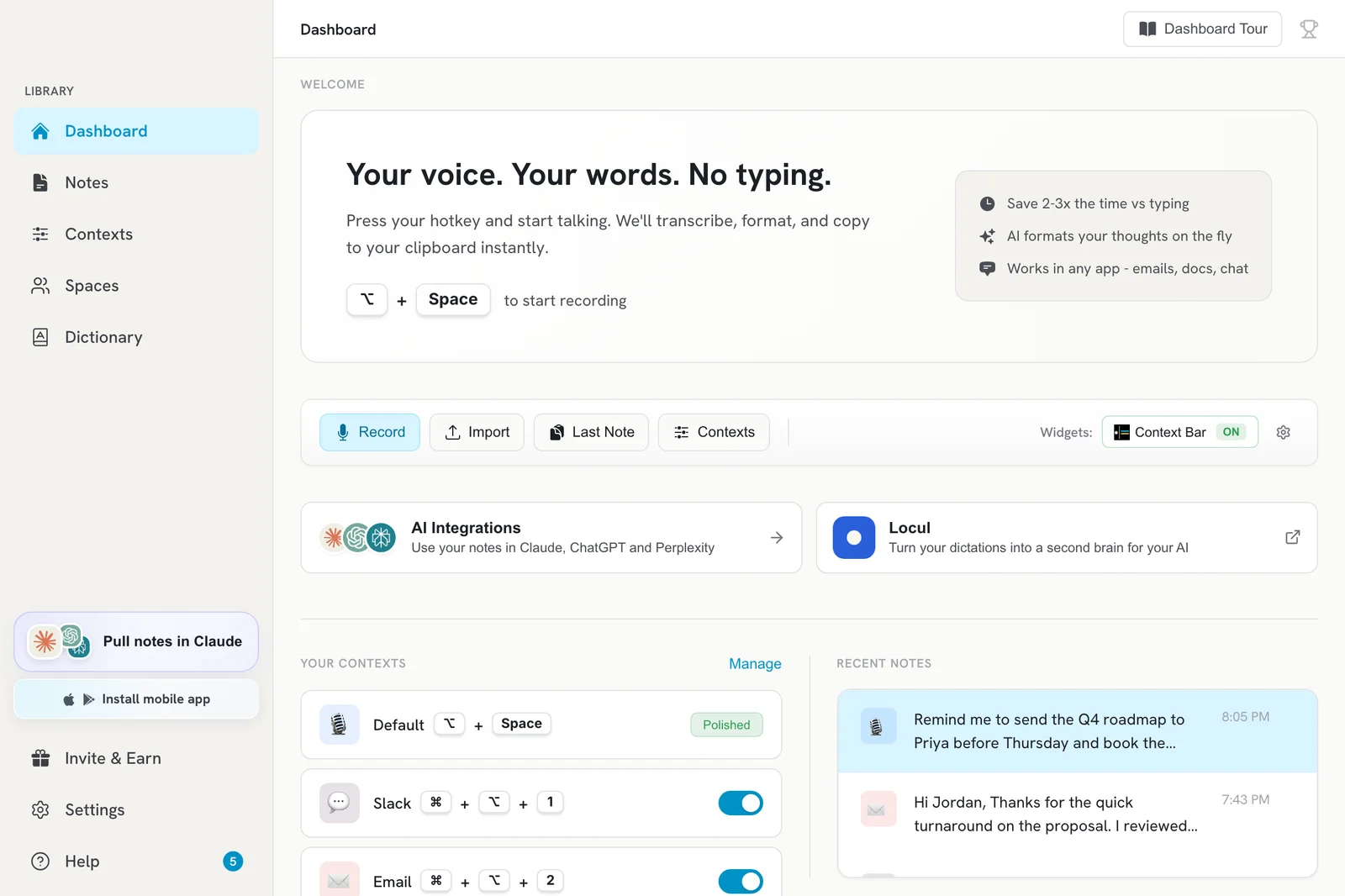
The default recording hotkey is Option+Space on Mac and Ctrl+Space on Windows and Linux. Press it once to start dictating and again to stop.
All default shortcuts
| Action | Mac | Windows | Linux |
|---|---|---|---|
| Start and stop recording (Toggle or Hold to Record) | Option+Space | Ctrl+Space | Ctrl+Space |
| Built-in context hotkeys | Cmd+Option+1 to 0, then Cmd+Option+Shift+1 to 4 | Alt+Shift+1 to 0, then Alt+Shift+F6 to F9 | Ctrl+Alt+1 and up |
| Show or hide the contexts bar | Cmd+Option+M | Alt+Shift+M | Ctrl+Alt+M |
| Show or hide Quick Mic | Cmd+Option+O | Alt+Shift+O | Ctrl+Alt+O |
Notes
- Toggle and Hold share one hotkey. Switching to Hold to Record keeps your current hotkey. See Choose Toggle or Hold to record.
- Context hotkeys only work for contexts you have turned on. Built-in contexts other than Default Transcription are off until you enable them. See Turn on built-in contexts like Email and Slack.
- See your current shortcuts on the Dashboard, on each card in Contexts, or in Settings > General > Keyboard Shortcut.
- There is no global key to cancel a recording. Click Cancel recording on the on-screen widget instead.
- Tray or menu bar: you can also click the Contextli icon and choose Start Recording or Copy Last Transcript.
Change a shortcut
- Main hotkey: Settings > General > Keyboard Shortcut. See Change your recording hotkey.
- A context’s hotkey: Contexts, edit the context, then Global hotkey.
If a shortcut does nothing, another app may be using it. See The hotkey does nothing when I press it.
Related articles
Did this answer your question?
Thanks for letting us know.Thanks, we will improve this article. Want a hand right now?
Still need help?
Chat with us and get an answer in a few minutes.