
Turn on built-in contexts like Email and Slack
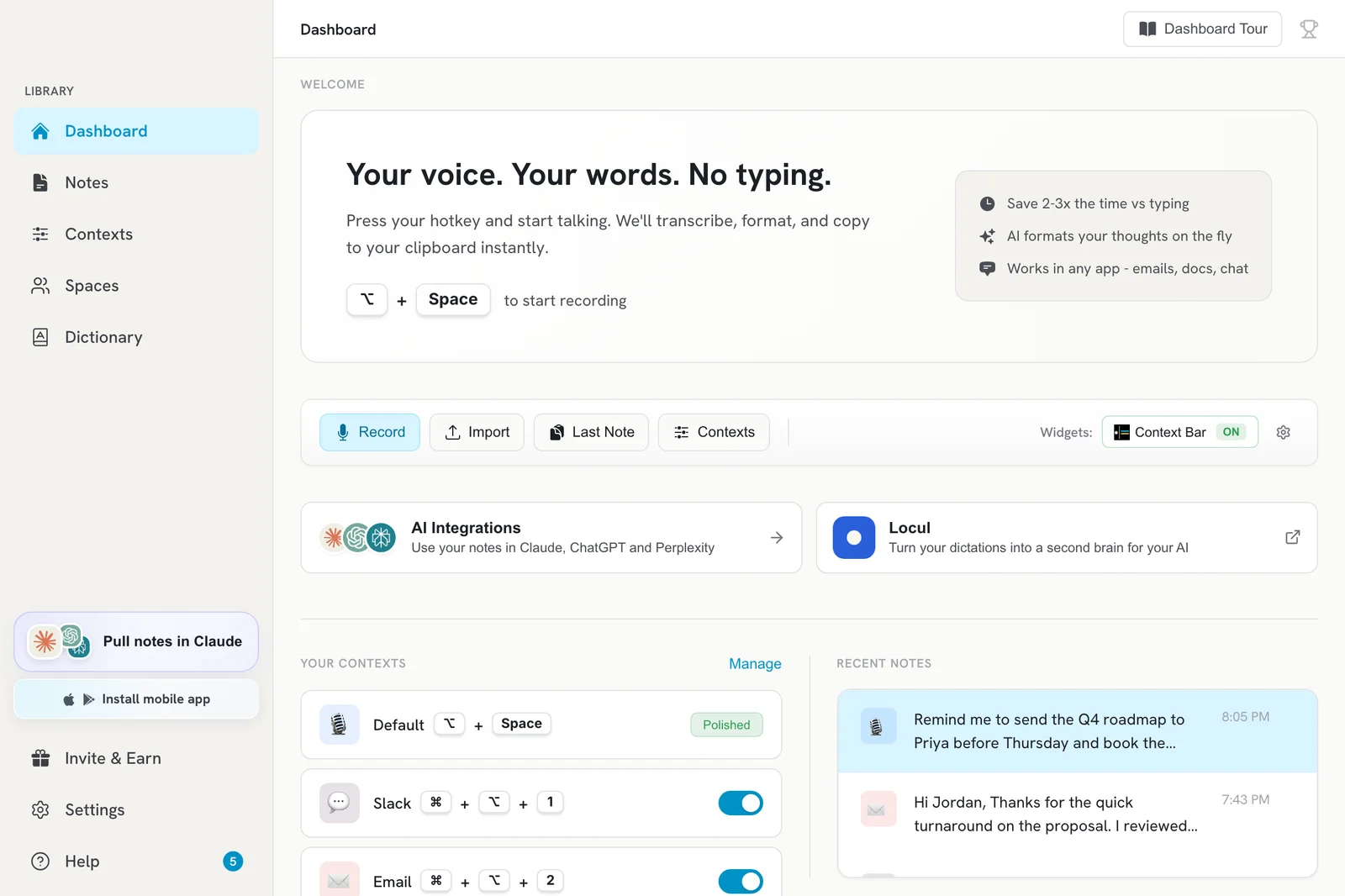
Open the Dashboard and switch on the context under Your Contexts. It then appears under Selected Contexts and works with its own hotkey.
On this page
Built-in contexts such as Email, Slack and LinkedIn are off until you switch them on. Open the Dashboard, find the context under Your Contexts and click its toggle; it then shows under Selected Contexts on the Contexts page and works with its own hotkey.
Turn on a built-in context
- Click Dashboard in the sidebar.
- Under Your Contexts, find the context you want. Popular ones are marked Popular.
- Click its toggle so it turns on.
- Click Manage to open the Contexts page. The context now appears under Selected Contexts, with its hotkey.
Default hotkeys
| Context | Mac | Windows | Linux |
|---|---|---|---|
| Slack | Cmd+Option+1 | Alt+Shift+1 | Ctrl+Alt+1 |
| Cmd+Option+2 | Alt+Shift+2 | Ctrl+Alt+2 | |
| Cmd+Option+3 | Alt+Shift+3 | Ctrl+Alt+3 |
To change a hotkey, click the context card on the Contexts page, set a new Global hotkey and save.
Good to know
- Email has screenshot capture on by default, so it can use what is on your screen (for example the email you are replying to). On Mac, the first use asks for Screen Recording permission. See Give the AI screen context with screenshot capture.
- Email, Slack and LinkedIn can switch on automatically when you are in a matching app. See Pick a context automatically based on the app you are in.
- To turn a context off again, click its toggle on the Dashboard or on its card on the Contexts page.
Don’t see the one you need?
- Click Add New Context on the Contexts page and pick a template under Start from (for example Meeting notes or Bug report).
- Or click Browse Library on the Contexts page to find 200+ ready-made contexts and import one.
Related articles
Did this answer your question?
Thanks for letting us know.Thanks, we will improve this article. Want a hand right now?
Still need help?
Chat with us and get an answer in a few minutes.