
Change your username or account email
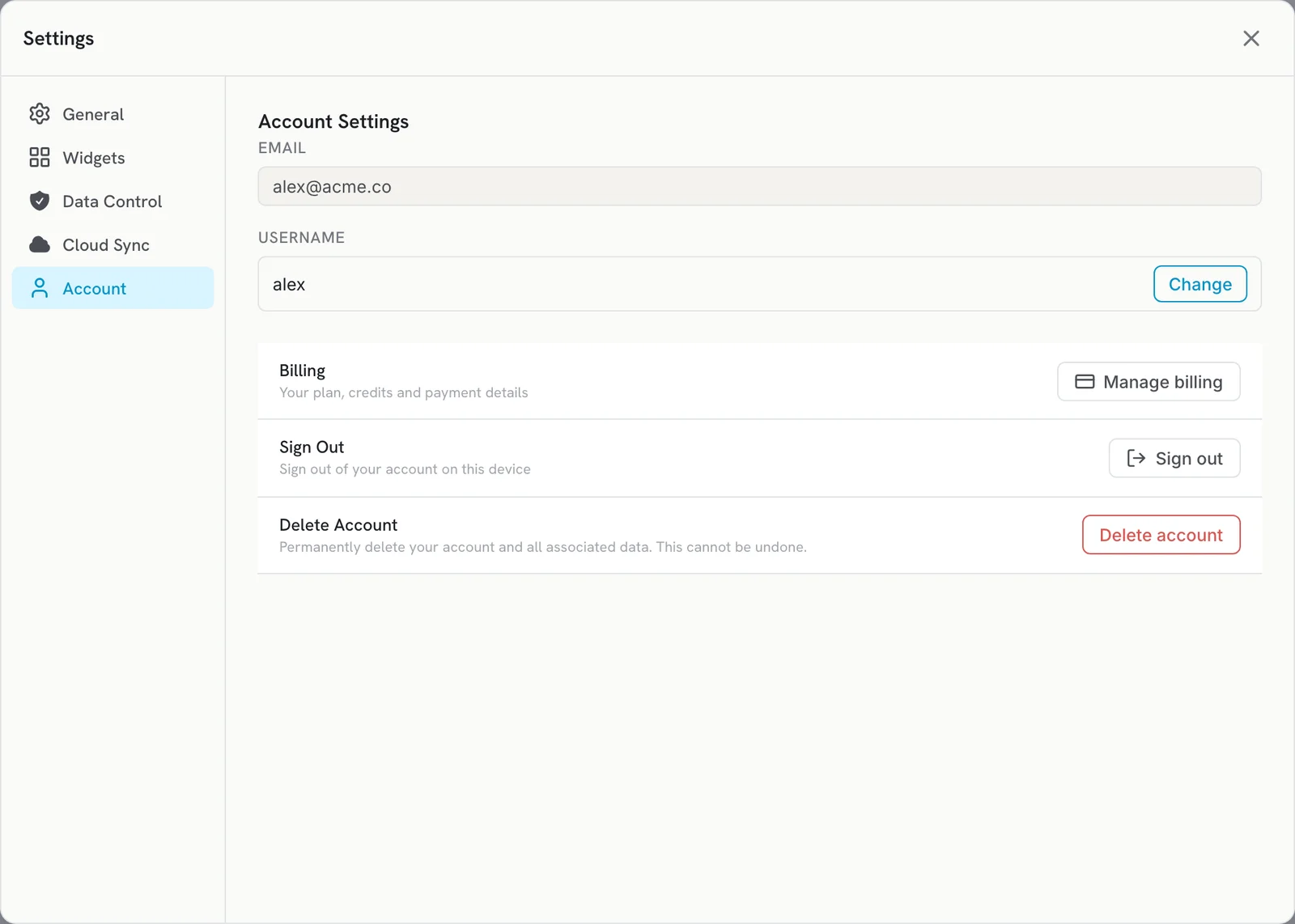
Change your username in Settings > Account > Username > Change. Your account email cannot be changed in the app: email [email protected] to change it.
Change your username in Settings > Account > Username > Change. Your account email cannot be changed in the app: email [email protected] and we will change it for you.
Change your username
- Open Settings and go to the Account tab.
- Next to Username, click Change.
- Type your new username.
- Click Save.
Username rules:
- 3 to 30 characters.
- Lowercase letters, numbers, hyphens (-) and underscores (_) only.
If the name is taken or does not follow the rules, you see a message under the field. Try another one.
Change your account email
The Email field in Settings > Account is read-only.
- Email [email protected] from your current account email.
- Tell us the new email address you want to use.
Once it is changed, sign in on every device with the new email. Sign-in is passwordless: you get a 6-digit code at that address, or you can use Continue with Google if it is a Google account.
Good to know
- Your plan, credits and notes stay with your account when the email changes.
- If you bought a subscription in the iPhone app, it stays with your Apple ID. See Manage or cancel a subscription bought in the App Store.
- Signing in with a different email creates a separate account instead of changing yours.
Related articles
Did this answer your question?
Thanks for letting us know.Thanks, we will improve this article. Want a hand right now?
Still need help?
Chat with us and get an answer in a few minutes.