
Delete your account and data
Go to Settings > Account > Delete Account, type delete my account and click Delete permanently. Cancel any subscription first.
On this page
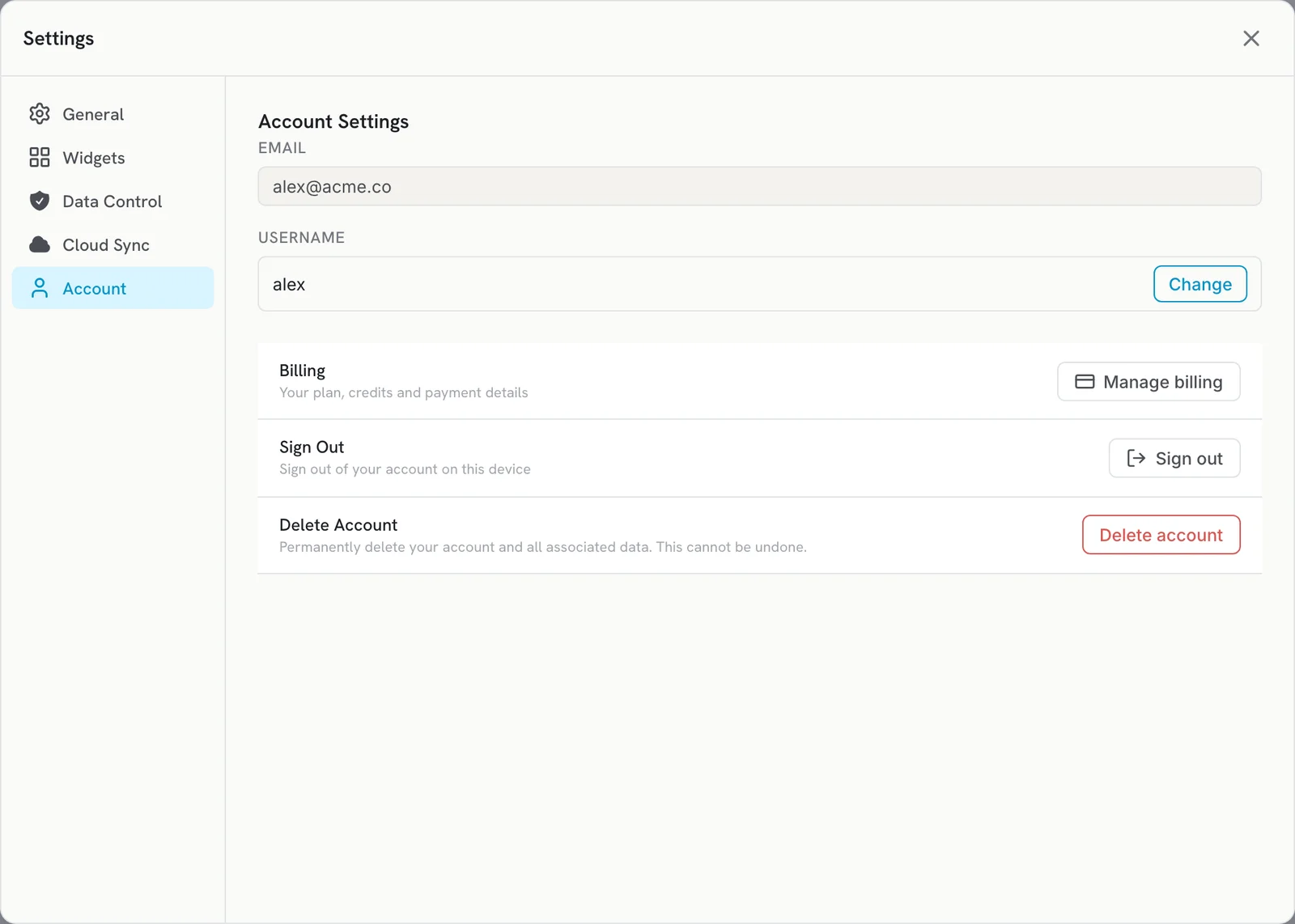
In the desktop app, go to Settings > Account, click Delete account, type delete my account and click Delete permanently. This cannot be undone, so cancel any subscription first.
Before you delete
- Cancel your subscription. If you pay through the App Store, deleting your account does not cancel it: cancel in your Apple ID subscriptions (Settings > your name > Subscriptions on iPhone). For other subscriptions, see Cancel your subscription.
- Copy anything you want to keep. There is no bulk export, so copy important notes first.
Delete your account in the app
- Open Contextli and click Settings.
- Click the Account tab.
- Next to Delete Account, click Delete account.
- Optional: click What data will be deleted? to see the list.
- Type
delete my accountin the box. - Click Delete permanently.
What is deleted
- Your account profile (email, username)
- Cloud recordings and audio files
- Cloud transcripts and notes
- AI modes (contexts) and custom settings
You are signed out on that device.
Remove notes stored on your computer
Notes and recordings saved locally stay on your computer until you remove them. Delete the Contextli folder, or uninstall the app:
| System | Folder |
|---|---|
| Mac | ~/Library/Application Support/Contextli/ |
| Windows | %APPDATA%\Contextli\ (removed when you uninstall) |
| Linux | ~/.config/Contextli/ |
Do this on every computer where you used Contextli.
Can’t open the app?
Request deletion on the web instead:
- Delete your account and all data: https://contextli.com/delete-account. Requests are processed within 30 days.
- Delete your personal data but keep the account: https://contextli.com/delete-data.
Or email [email protected] from the address on your account.
Related articles
Did this answer your question?
Thanks for letting us know.Thanks, we will improve this article. Want a hand right now?
Still need help?
Chat with us and get an answer in a few minutes.