
Sync notes and contexts across your devices
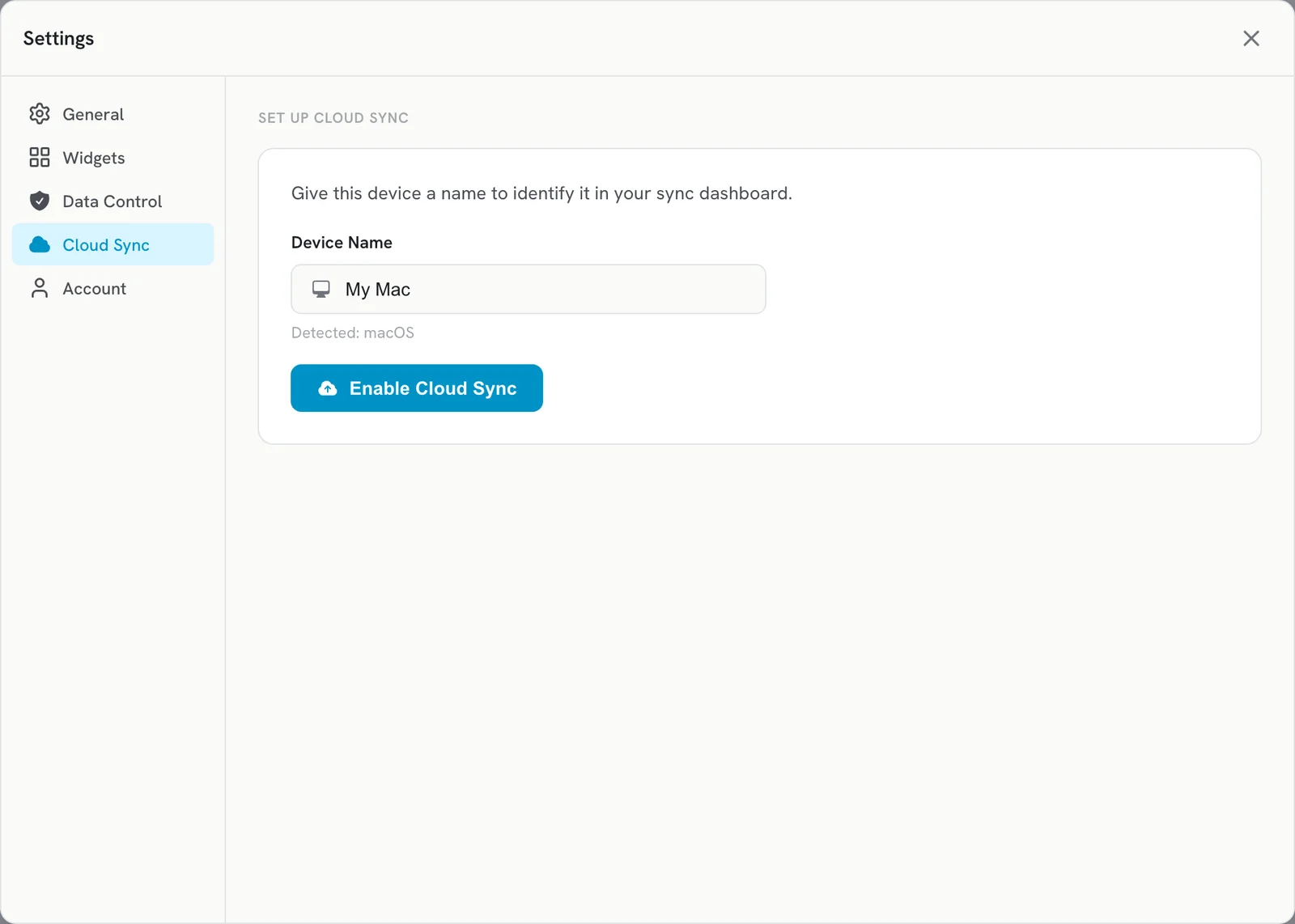
Open Settings > Cloud Sync, name the device and click Enable Cloud Sync. Do the same on each device to share notes, contexts and dictionary items.
Open Settings > Cloud Sync, give the device a name and click Enable Cloud Sync. Repeat on each computer signed in to the same account, and your notes, custom contexts and dictionary items stay the same everywhere.
Turn on Cloud Sync
- Open Contextli and click Settings.
- Click the Cloud Sync tab.
- Under Set Up Cloud Sync, type a Device Name (for example “Work laptop”).
- Click Enable Cloud Sync.
- If you have many notes, you may see Large Initial Sync. Click Continue. The first sync can take several minutes.
- Sign in to the same account on your other computer and repeat these steps there.
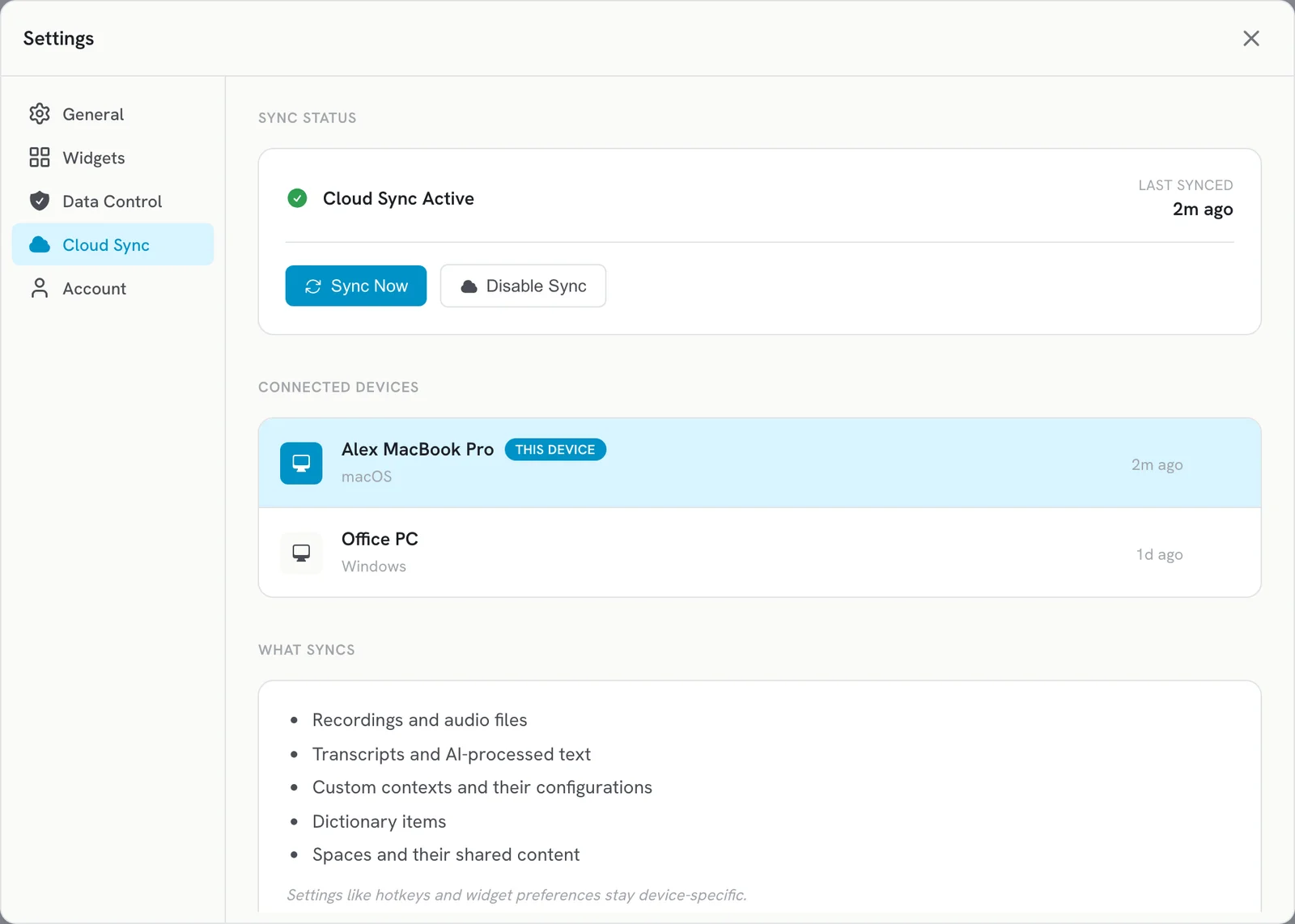
When it works, you see Cloud Sync Active and the time it last synced.
What syncs
- Recordings and audio files
- Transcripts and AI-processed text
- Custom contexts and their configurations
- Dictionary items
- Spaces and their shared content
Hotkeys and widget preferences stay on each device, so you can use different shortcuts on each computer.
Manage sync
- Sync Now: sync straight away instead of waiting.
- Connected Devices: see every device and when it last synced. This device marks the one you are on. Click the remove button to remove a device.
- Disable Sync: stops syncing on this device. Your data stays in the cloud and you can turn sync on again any time.
Availability
Cloud Sync and the number of devices depend on your plan. See https://contextli.com/pricing. Without Cloud Sync, you can still use Contextli on each device separately; notes then stay on the computer where you dictated them.
Troubleshooting
- A note is missing on the other device: click Sync Now on both devices.
- Different hotkeys on each computer: this is expected, hotkeys do not sync.
- Still stuck: email [email protected] with both device names.
Related articles
Did this answer your question?
Thanks for letting us know.Thanks, we will improve this article. Want a hand right now?
Still need help?
Chat with us and get an answer in a few minutes.