
Add text replacements (shortcuts) to the dictionary
Open Dictionary, stay on Text replacements and click Add Shortcut. Say the phrase and Contextli swaps it for your full text, like a link or email.
On this page
Open Dictionary, stay on the Text replacements tab and click Add Shortcut. Whenever you say that phrase, Contextli swaps it for the full text, for example “my calendar link” becomes your booking URL.
Add a shortcut
- Click Dictionary in the sidebar.
- Make sure the Text replacements tab is selected.
- Click Add Shortcut.
- In When I say…, type the phrase you will speak, for example “my calendar link”.
- In Replace with…, type the text you want instead, for example your full booking URL.
- Optional: tick Case sensitive if capitalisation must match exactly.
- Click Save (or press Enter).
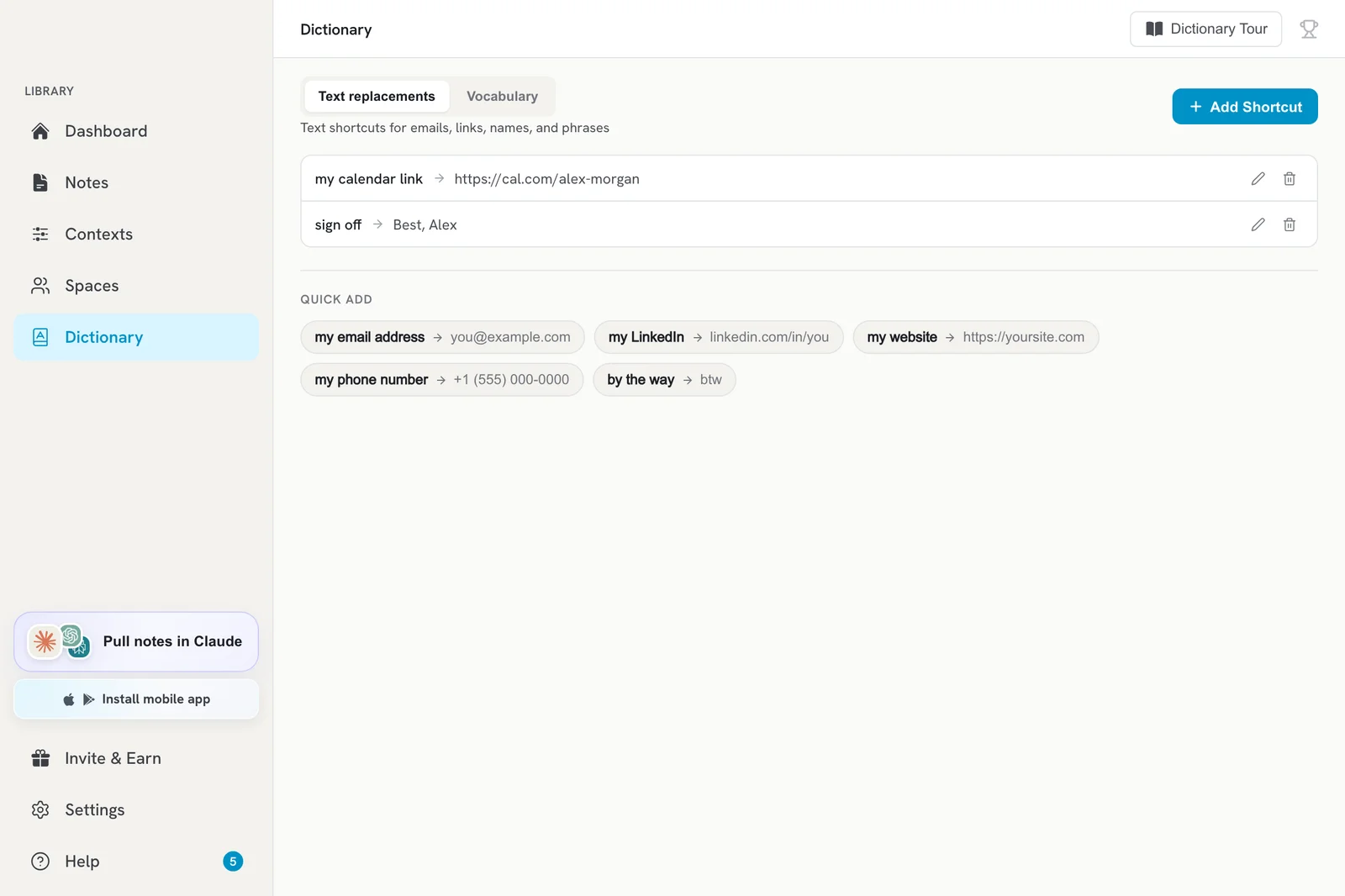
Try it: press your hotkey and say “here is my calendar link”. The full URL is pasted.
Quick add
Under Quick add (or “Start with one of these” when the list is empty) you can pick common shortcuts, like your email address, and just fill in the replacement.
Edit, search or delete
- Use the search box (Search replacements…) to find a shortcut.
- Click a shortcut to edit it, or use its delete button to remove it.
Ideas for shortcuts
- Your email address, phone number or address
- Calendar and meeting links
- Your sign-off or a standard reply
- Product names with unusual spelling
Text replacements or vocabulary?
- Text replacements change what is written: phrase in, different text out.
- Vocabulary helps Contextli hear a word correctly but does not replace anything. See Improve accuracy for names and technical terms.
Team shortcuts
Shortcuts can be shared with your team through a Space. Items shared with you show under Shared with Me on the Dictionary page.
Troubleshooting
- The phrase is not replaced: say it the same way you typed it, and check that Case sensitive is off unless you need it.
- It replaces too often: use a more unusual trigger phrase, such as “my calendar link” instead of “calendar”.
Related articles
Did this answer your question?
Thanks for letting us know.Thanks, we will improve this article. Want a hand right now?
Still need help?
Chat with us and get an answer in a few minutes.