
Organize notes with labels
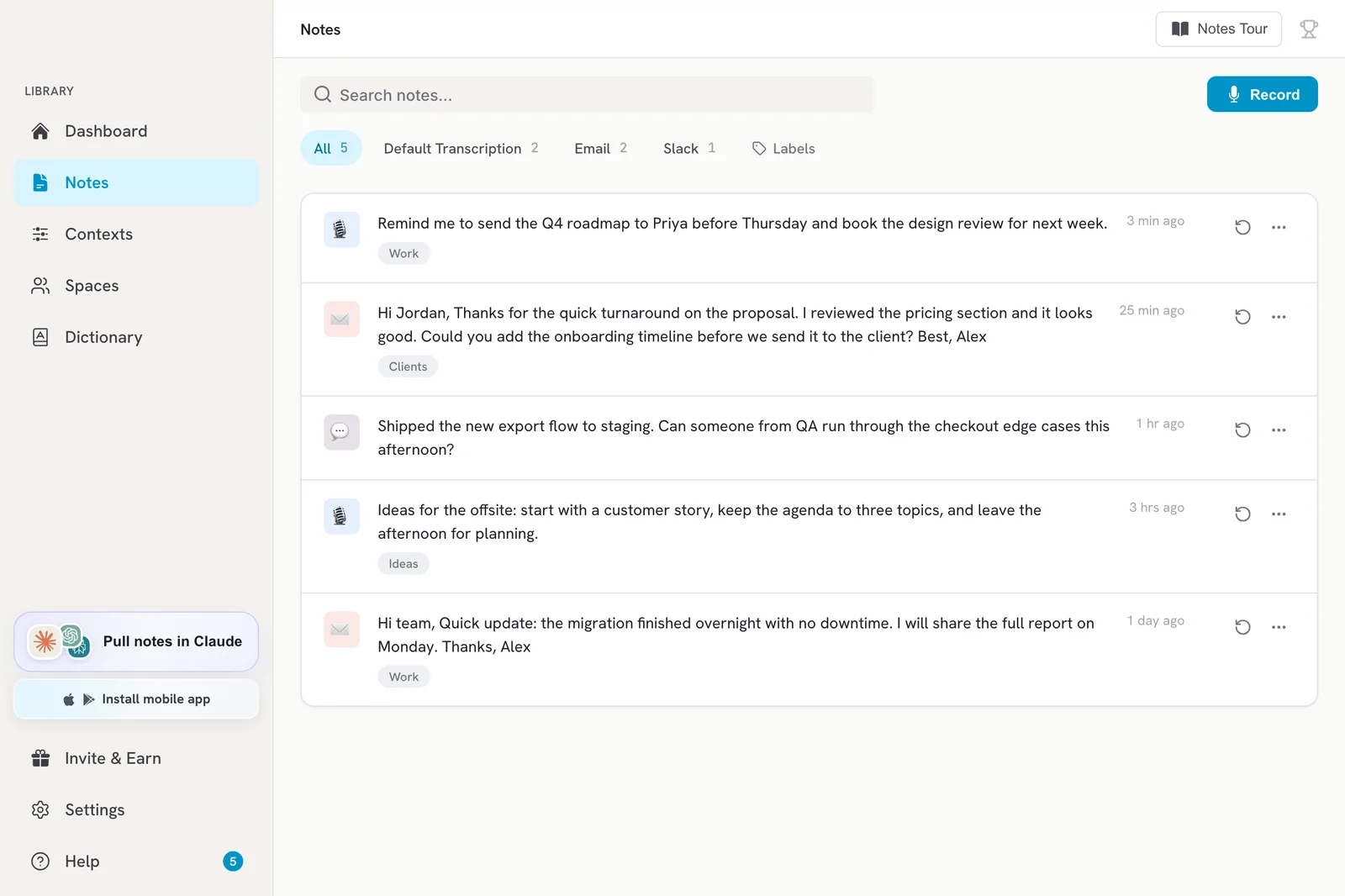
Open a note and type in the Add label field to tag it. Then use the Labels filter on the Notes page to see every note with that label.
On this page
Open a note and type a label in the Add label field to tag it. Then use the Labels filter on the Notes page to see every note with that label.
Add a label to a note
- Click Notes in the sidebar.
- Click the note to open it.
- Click Add label below the text and type a label, for example “Work”.
- Press Enter, or pick one of your existing labels from the suggestions.
Labels save right away. A note can have up to 20 labels.
Remove a label
Open the note and click the remove button on the label chip.
Filter notes by label
- On the Notes page, click the Labels filter.
- Pick a label. Only notes with that label are shown.
Label a note with your voice
If voice labels are available on your account, you can label a note while you dictate:
- Say “label it” and the label name at the very start or the very end of your dictation. Example: “Buy milk on the way home. Label it Errands.”
- Contextli files the note under that label. The label words do not appear in your text.
- Changed your mind? Click Undo on the message that pops up.
Tips:
- Always use the word “label”. It only works at the start or end, not in the middle.
- You can add up to 3 labels at once: “Label it Work and Ideas”.
Labels or contexts?
- Contexts change how your words are written (email, Slack, notes).
- Labels only organize your notes. They do not change the text.
The context filter tiles on the Notes page already group notes by the context you used, so use labels for anything else, like a project or a client.
Related articles
Did this answer your question?
Thanks for letting us know.Thanks, we will improve this article. Want a hand right now?
Still need help?
Chat with us and get an answer in a few minutes.