
"No sound from your microphone" or empty notes
Contextli is listening to a microphone that sends no sound. Pick the mic you talk into in Settings > General > Microphone and check mic permission.
On this page
This means Contextli is listening to a microphone that sends no sound. Pick the mic you actually talk into in Settings > General > Microphone, and make sure Contextli is allowed to use the microphone.
1. Pick the right microphone
- Open Settings > General.
- Under Recording, open the Microphone list.
- Choose your actual mic (headset, webcam, USB mic) instead of System Default. You will see Microphone updated.
- Try a short dictation again.
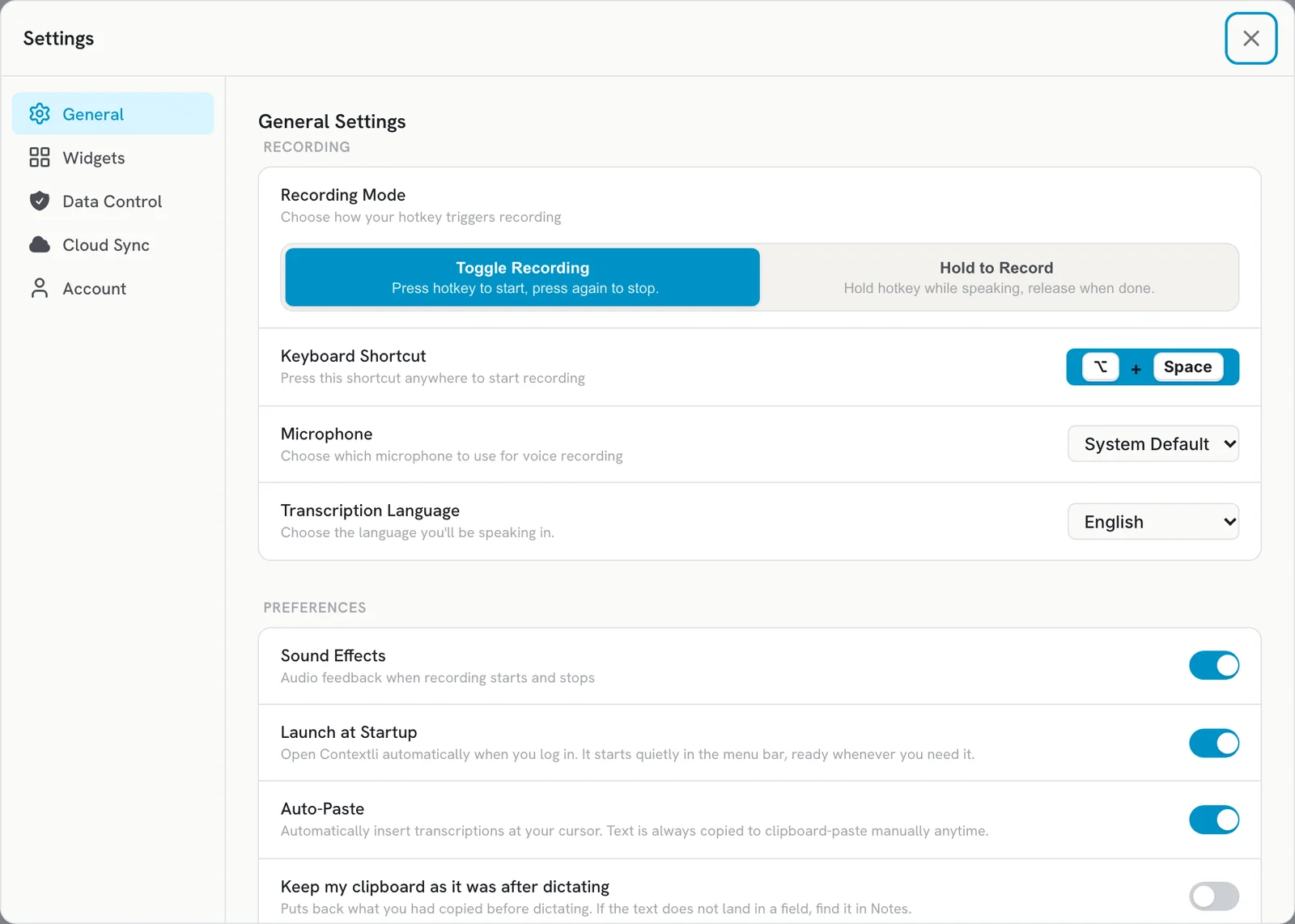
If you plug in a new headset or switch between headsets, check this setting again.
2. Allow microphone access
- Mac: open System Settings > Privacy & Security > Microphone and turn on Contextli.
- Windows: open Windows Settings > Privacy & security > Microphone and make sure microphone access and desktop app access are on.
3. Check the mic itself
Make sure the mic is not muted (a hardware switch or a mute key) and that it works in another app.
What the messages in Notes mean
- No audio was captured. Check your microphone.: the mic sent nothing. Fix the steps above.
- Audio saved / No speech detected. Recording saved for retry.: audio was recorded but no words were found, for example a very short or quiet recording.
- Recording was interrupted. Click retry to transcribe. or Transcription failed. Click retry to try again.: the audio is saved. Click Retranscribe on the note.
Empty or failed dictations do not use credits.
Related articles
Did this answer your question?
Thanks for letting us know.Thanks, we will improve this article. Want a hand right now?
Still need help?
Chat with us and get an answer in a few minutes.