
Dictate in your browser with the Chrome extension
Install the Contextli Chrome extension, sign in, allow the microphone, then click the Contextli mic next to a text box on ChatGPT, Claude, Gmail and other sites.
Install the Contextli extension from the Chrome Web Store, sign in, allow the microphone, then click the Contextli mic next to a text box to dictate. It uses the same account and credits as the desktop and mobile apps.
Set up the extension
- Install Contextli from the Chrome Web Store.
- Click the Contextli icon in your Chrome toolbar. Pin it from the puzzle-piece menu if you do not see it.
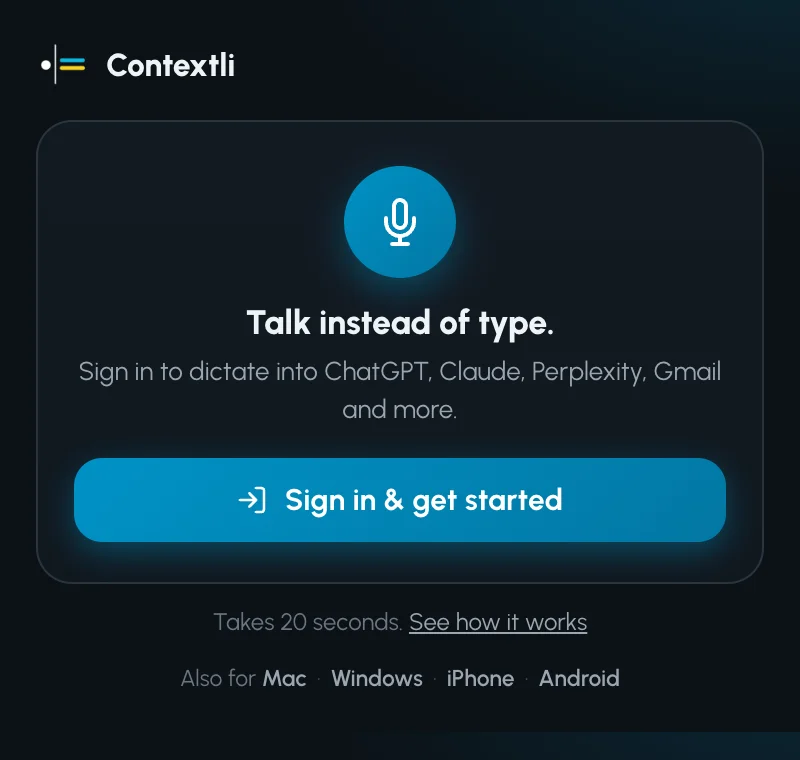
- Click Sign in & get started and sign in with Google or your email and 6-digit code. Use the same email as your desktop app.
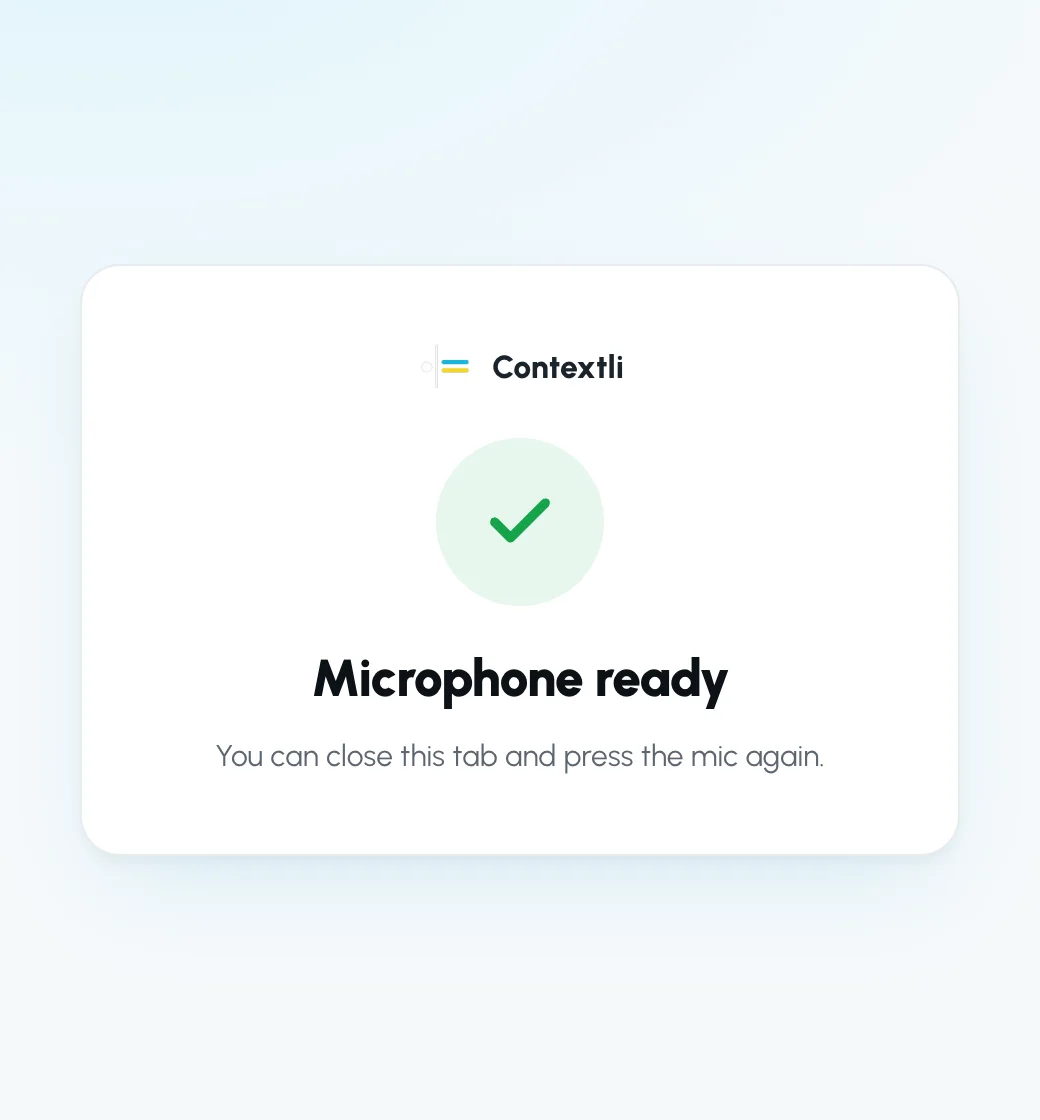
- The first time you dictate, a page opens asking for microphone access. Click Allow. You will see Microphone ready.
Dictate on a website
- Open a site with a text box, for example ChatGPT, Claude, Perplexity or Gmail.
- Click the round Contextli mic that appears next to the text box.
- Speak, then click the mic again to stop.
- Your text is inserted into the text box. If the page has no text field Contextli can find, the text is copied to your clipboard instead, so press Ctrl+V (Windows, Linux) or Cmd+V (Mac) to paste it.
Use the popup
Click the toolbar icon to open the popup.
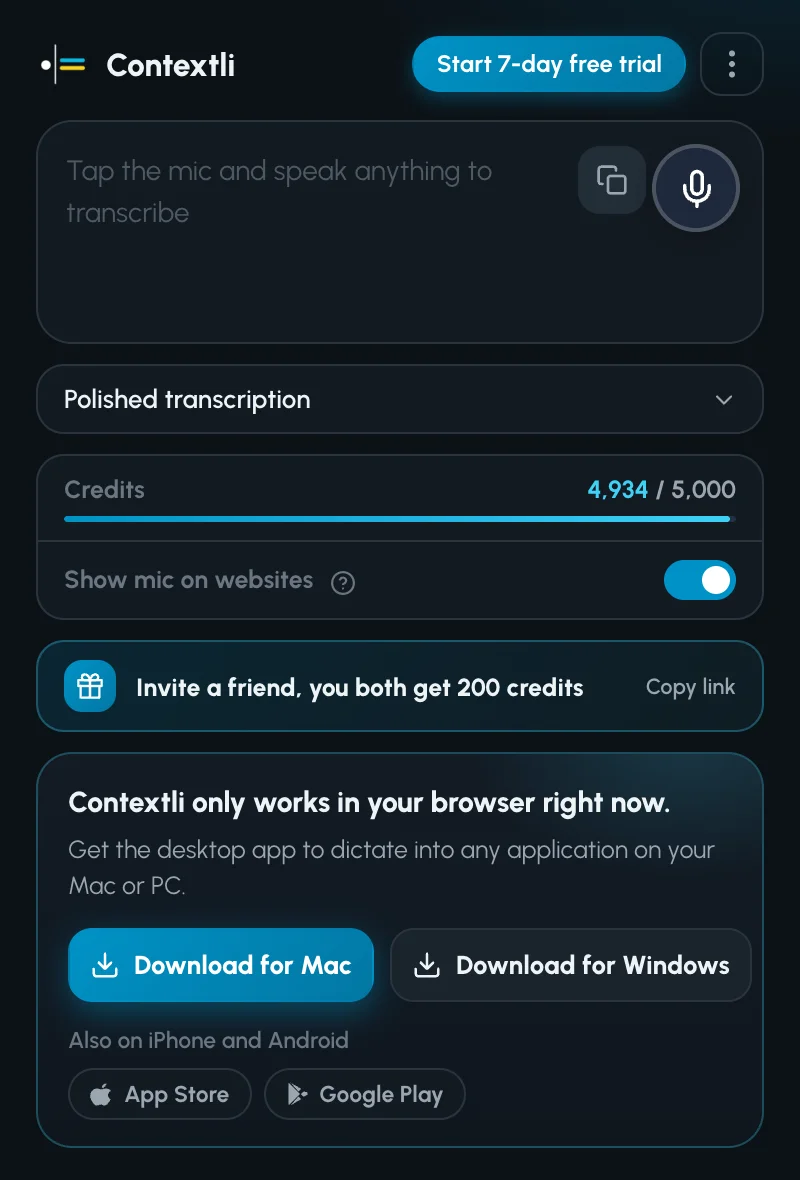
- Tap the mic to dictate into the popup’s text box, then copy the result.
- Polished transcription or Raw transcription: pick whether AI cleans up grammar and punctuation, or you get your exact words.
- Credits: shows what you have left on your account.
- Show mic on websites: turn this off to hide the mic on pages, for example if you use the desktop app instead.
Troubleshooting
- “AI polish failed, raw text kept”: your words were kept. Click Retry to polish them again.
- “Connection dropped, the last part may be missing”: check your internet and dictate the last part again.
- No mic next to the text box: make sure Show mic on websites is on, then reload the page.
- You want to dictate outside the browser: the extension works only in Chrome. Use the desktop app for Mac or Windows from contextli.com/download.
Related articles
Did this answer your question?
Thanks for letting us know.Thanks, we will improve this article. Want a hand right now?
Still need help?
Chat with us and get an answer in a few minutes.