
Install Contextli on Windows or Linux
Download the Windows installer or the Linux AppImage from contextli.com/download, run it, then sign in with Google or a 6-digit email code. The default recording hotkey on both is Ctrl+Space.
Windows
Contextli runs on Windows 10 and 11 (64-bit).
- Go to contextli.com/download and click Download under Windows.
- Open the downloaded installer.
- If a blue Windows protected your PC screen appears, click More info, then Run anyway. This shows because the app is new to Windows, not because something is wrong. The installer is code-signed and the publisher reads Ertiqah LLC.
- When the install finishes, Contextli opens.
Linux
- Go to contextli.com/download and click Download under Linux (AppImage).
- Make the file executable: right-click it, open Properties and allow it to run as a program, or run
chmod +xon the file in a terminal. - Double-click the AppImage to start Contextli.
Sign in and finish setup
- Click Continue with Google, or enter your email and type the 6-digit code from the Check your email screen. There is no password.
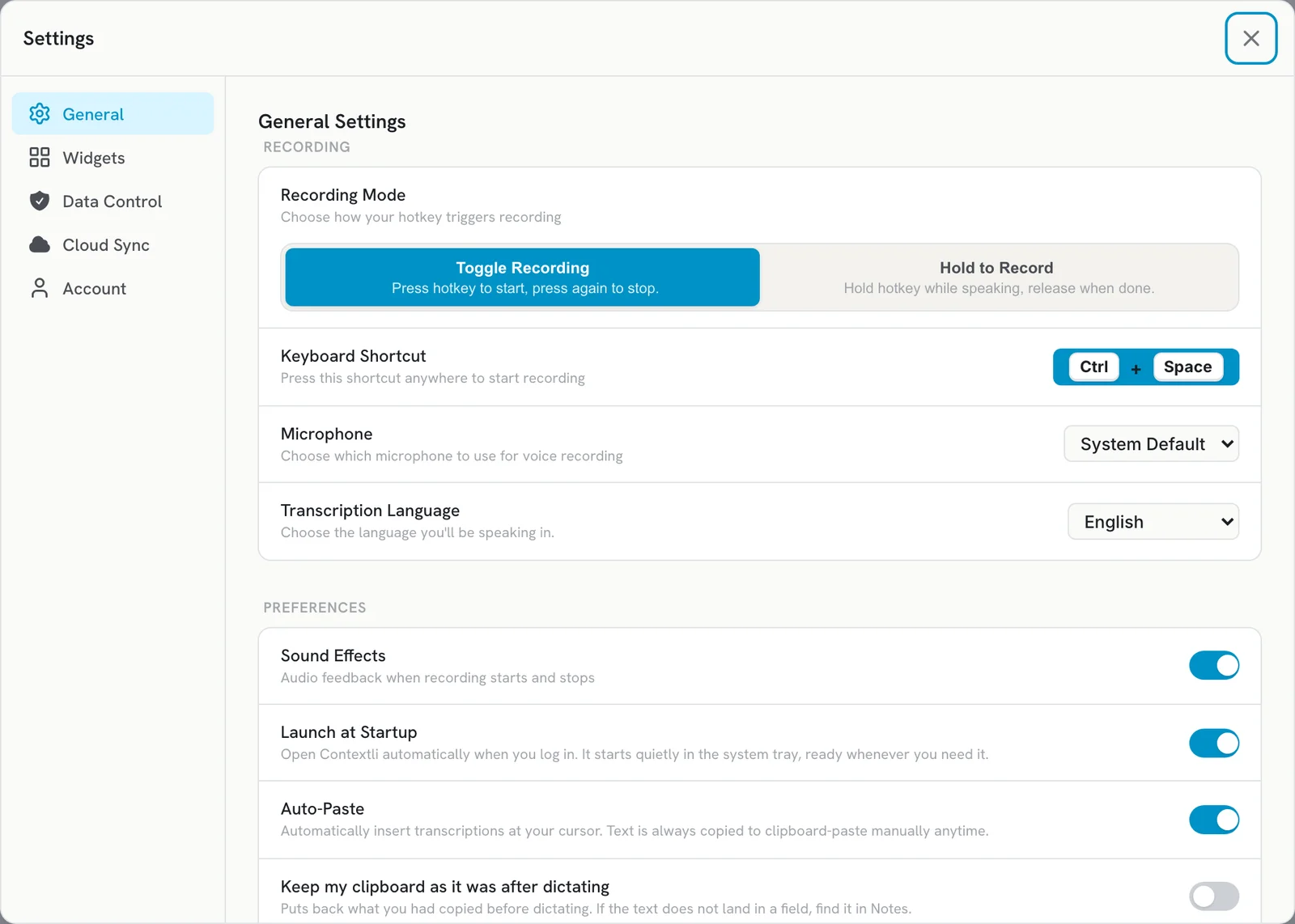
- On Let’s Get You Set Up, allow the microphone, use Select Microphone to pick the mic you talk into, choose a Recording Mode and check your Recording Hotkey.
- Choose your Transcription Language and try a dictation on the Try It Out step.
Good to know
- Closing the window hides Contextli to the system tray. It still listens for your hotkey. Use Quit in the tray menu to close it fully.
- On Windows, uninstalling Contextli deletes its data folder (
%APPDATA%\Contextli), including settings and local notes. To keep notes safe across computers, turn on Cloud Sync. - If Windows blocks pasting into an app, see Text is not pasted where my cursor is.
Related articles
Did this answer your question?
Thanks for letting us know.Thanks, we will improve this article. Want a hand right now?
Still need help?
Chat with us and get an answer in a few minutes.